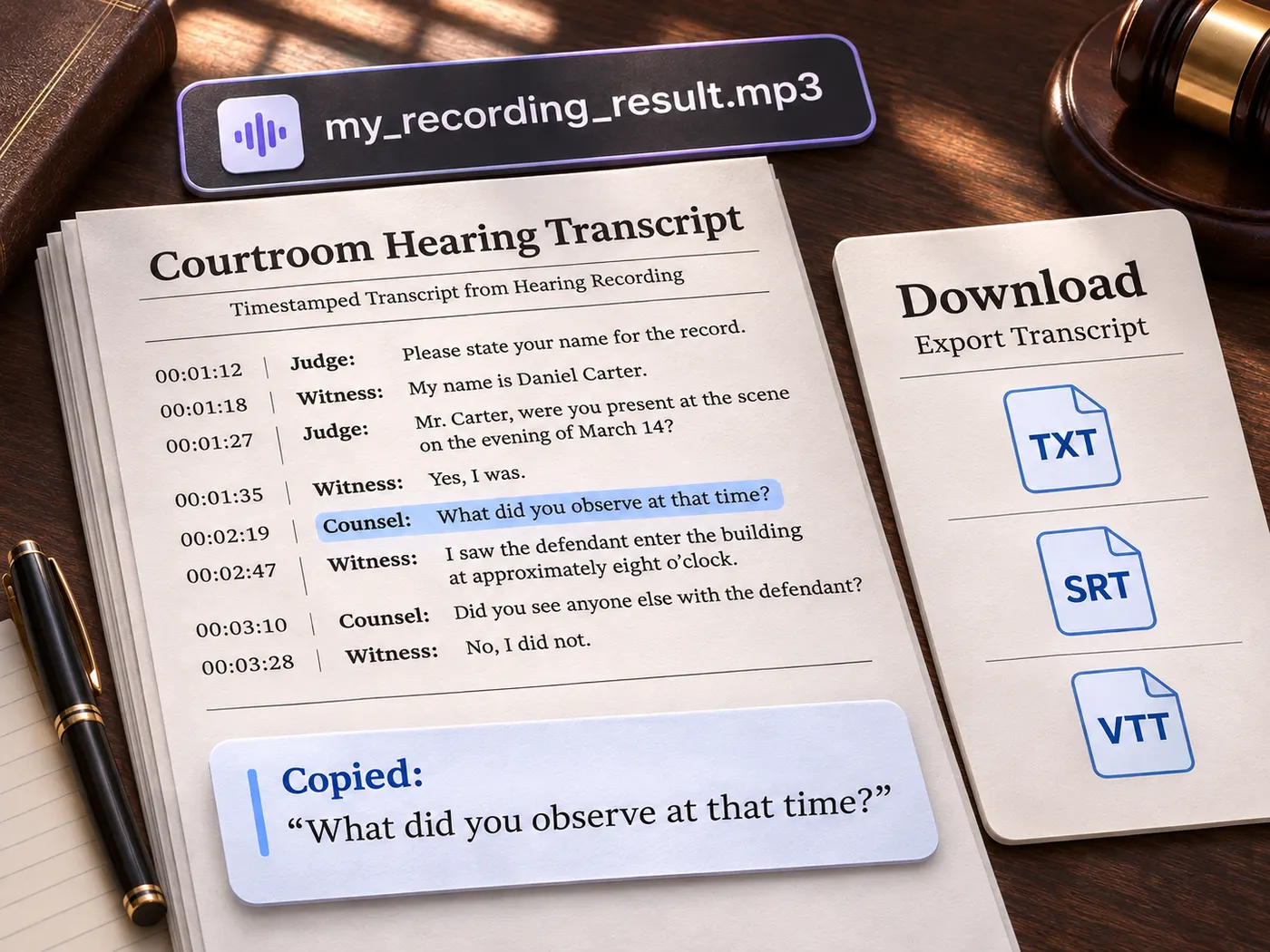
Free preview, timestamped results, and Pro SRT or VTT export
Audio to SRT File: Timed Subtitle Generator
Turn an MP3, M4A, WAV, AAC, FLAC, or OGG recording into a timestamped transcript in a few minutes. The file converter returns searchable text you can copy or download as TXT.
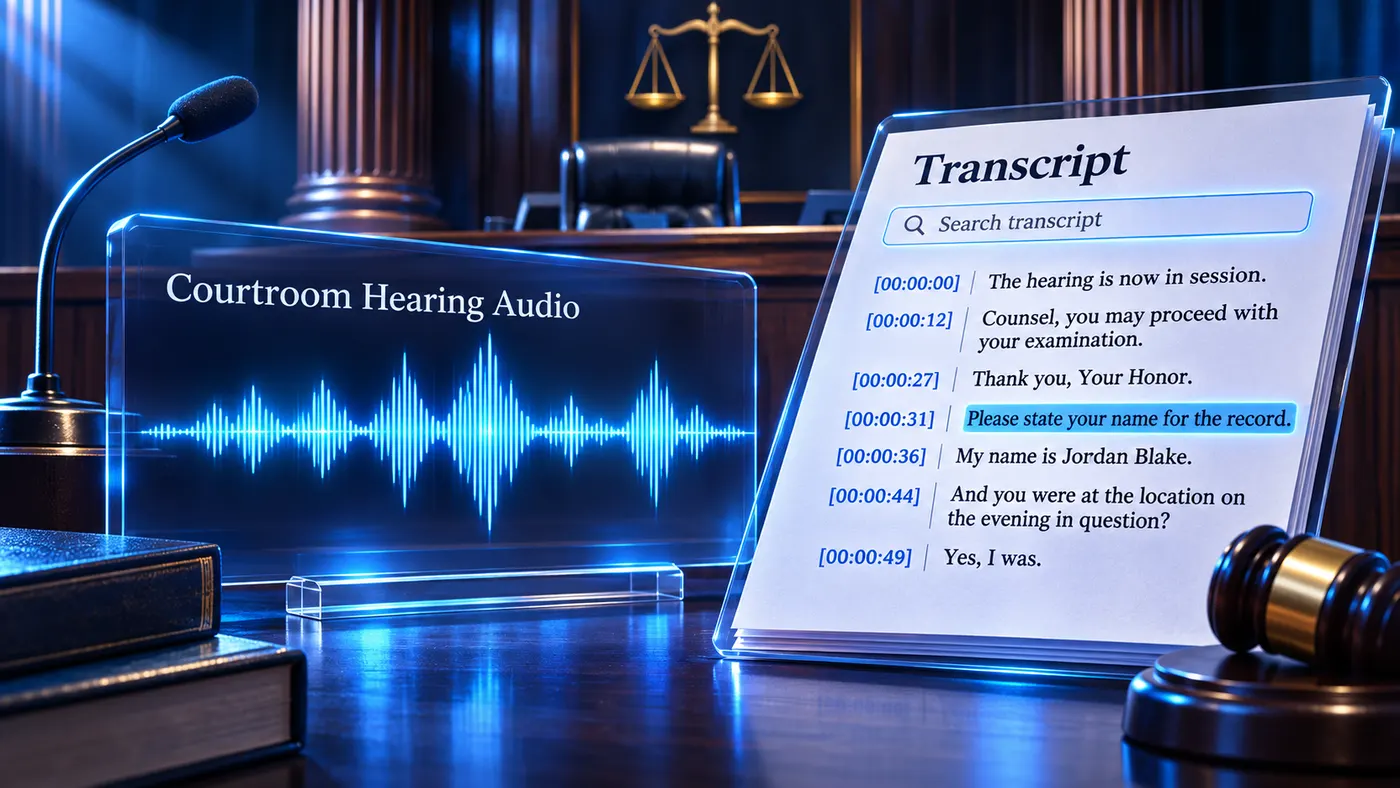
Search the transcript
Search the transcript immediately after processing, then jump to matching text instead of replaying the entire recording. For an audio to srt file workflow, this makes long interviews easier to review before you copy or download the text.
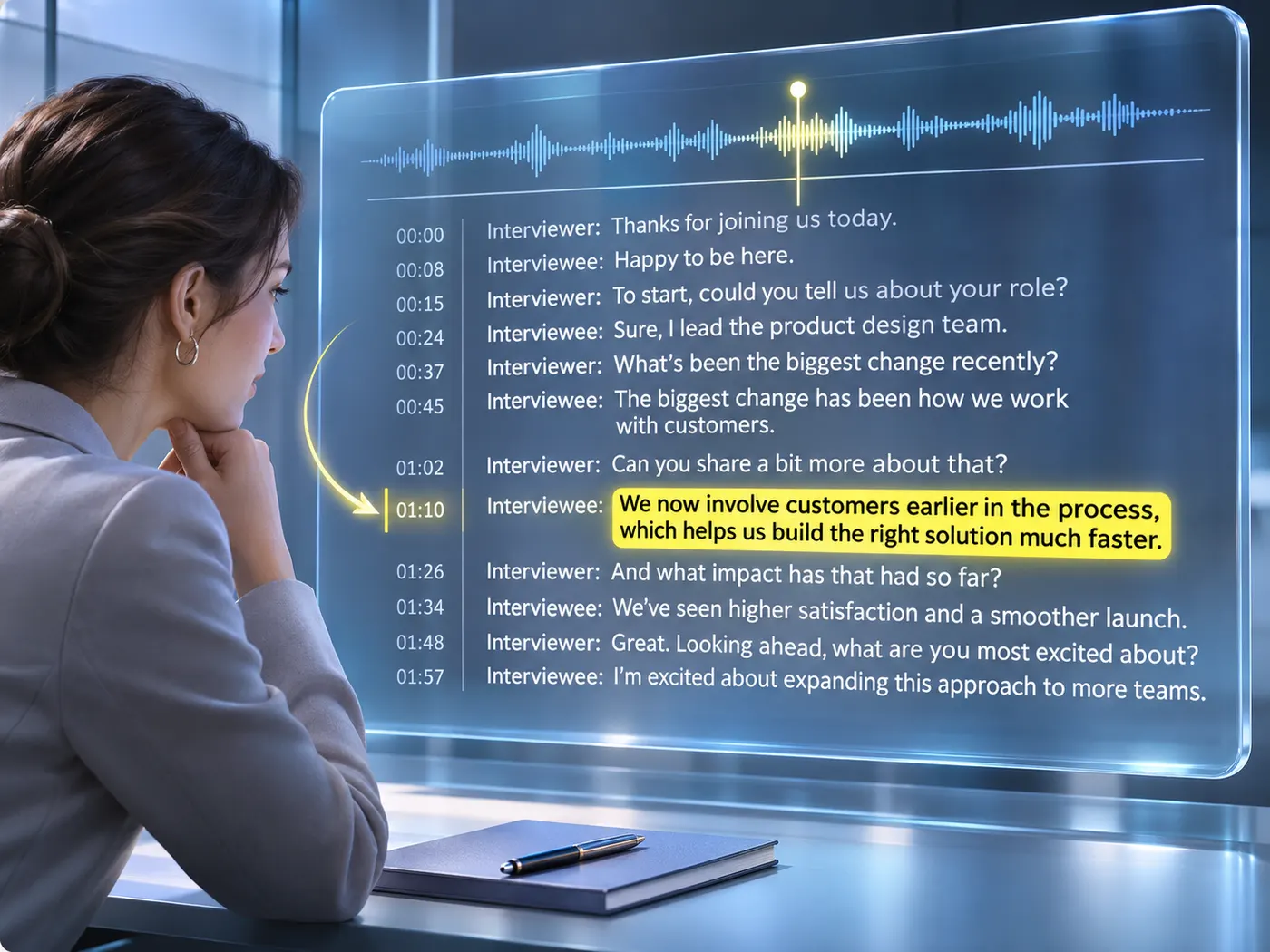
Keep timing with every line
Each returned transcript is organized around the audio timeline, so you can inspect where a sentence belongs. If you need mp3 to srt, start with an MP3 recording and review the timed text before preparing subtitles.
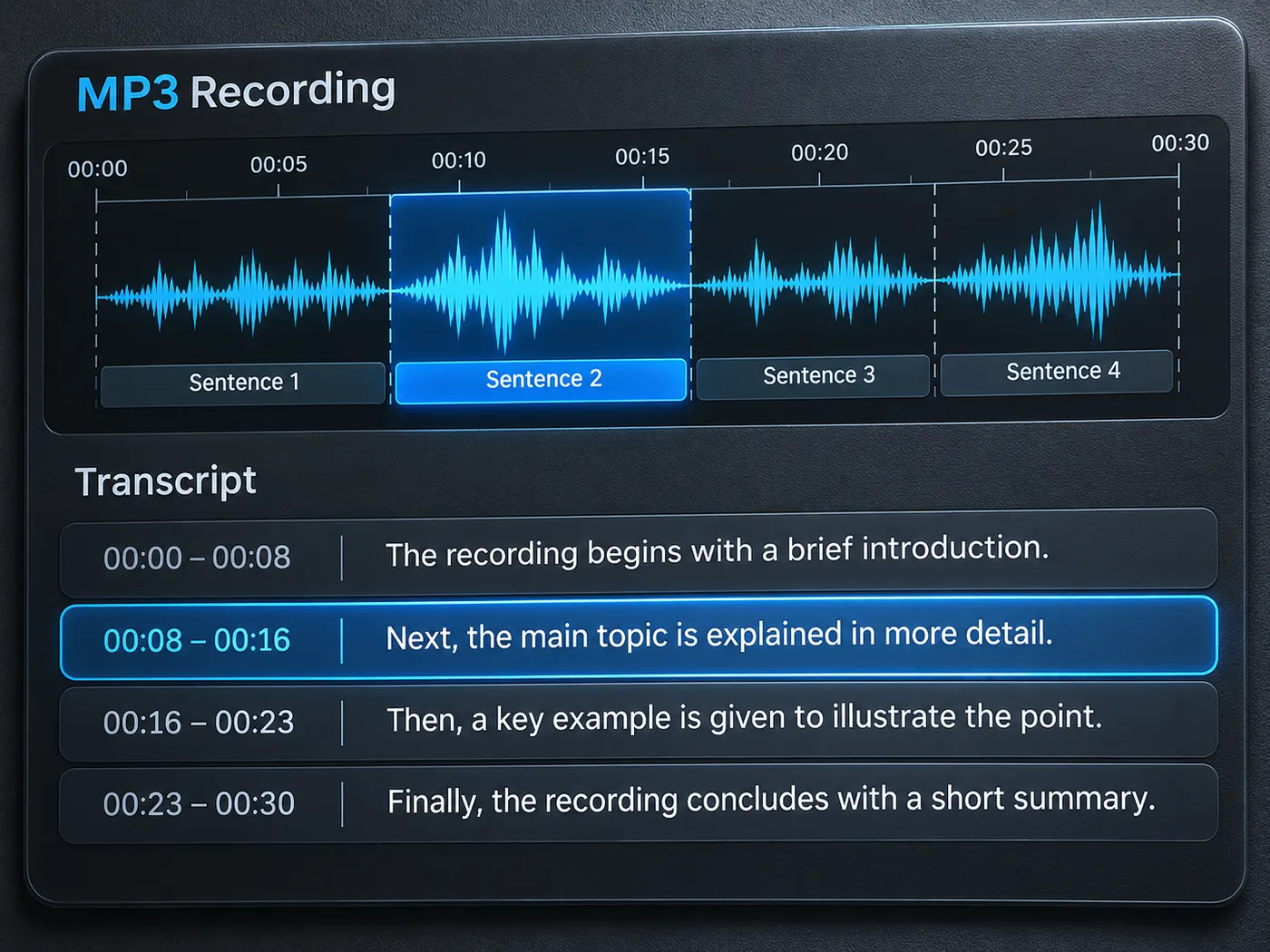
Take subtitles with you
Copy selected text or download the TXT result for notes and editing. Pro export supports SRT or VTT, giving an audio to srt file workflow an importable subtitle format rather than a plain block of words.
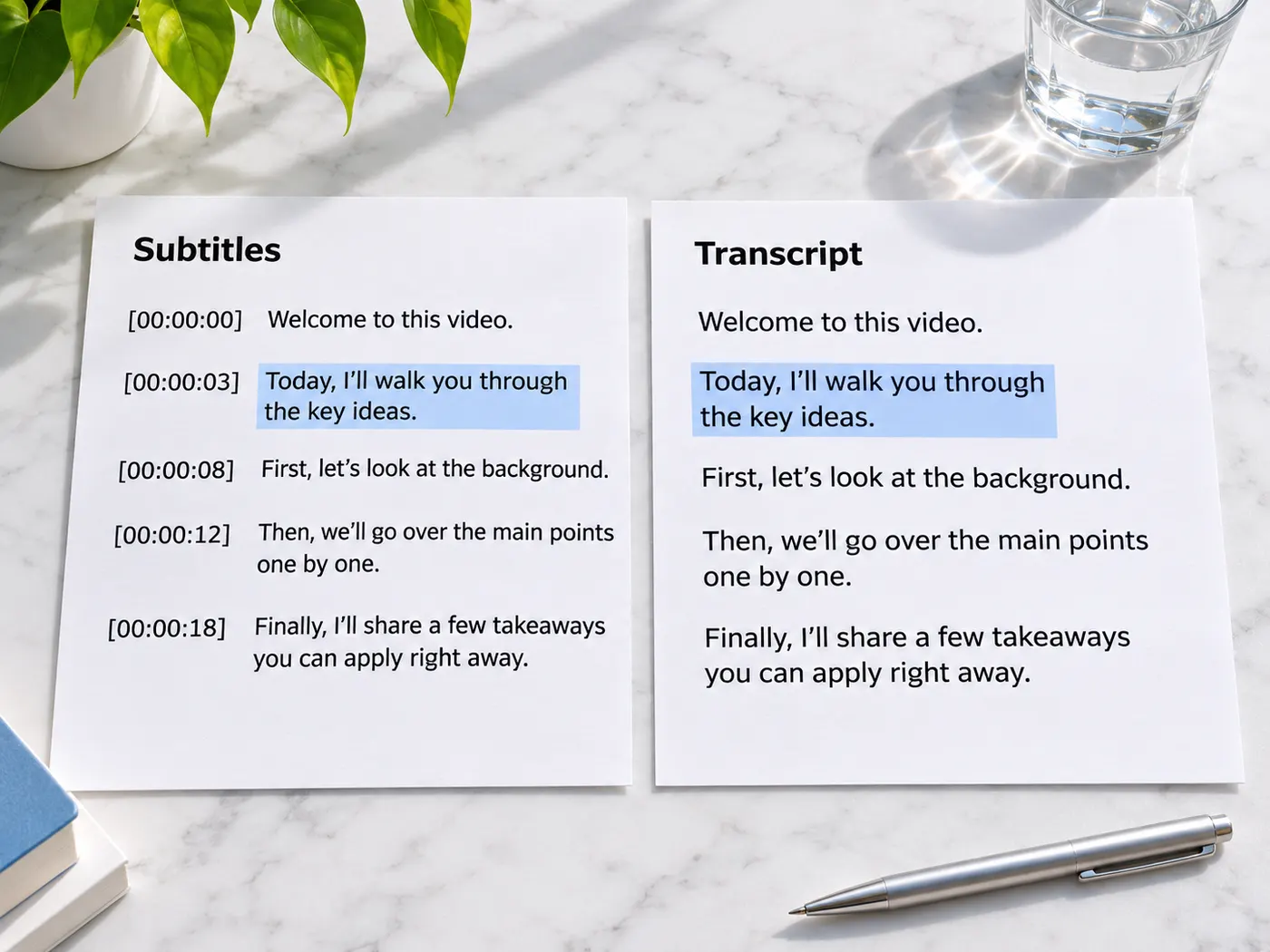
From upload to usable text
Watch the recording move from a file upload to a searchable, timestamped result you can review and download.
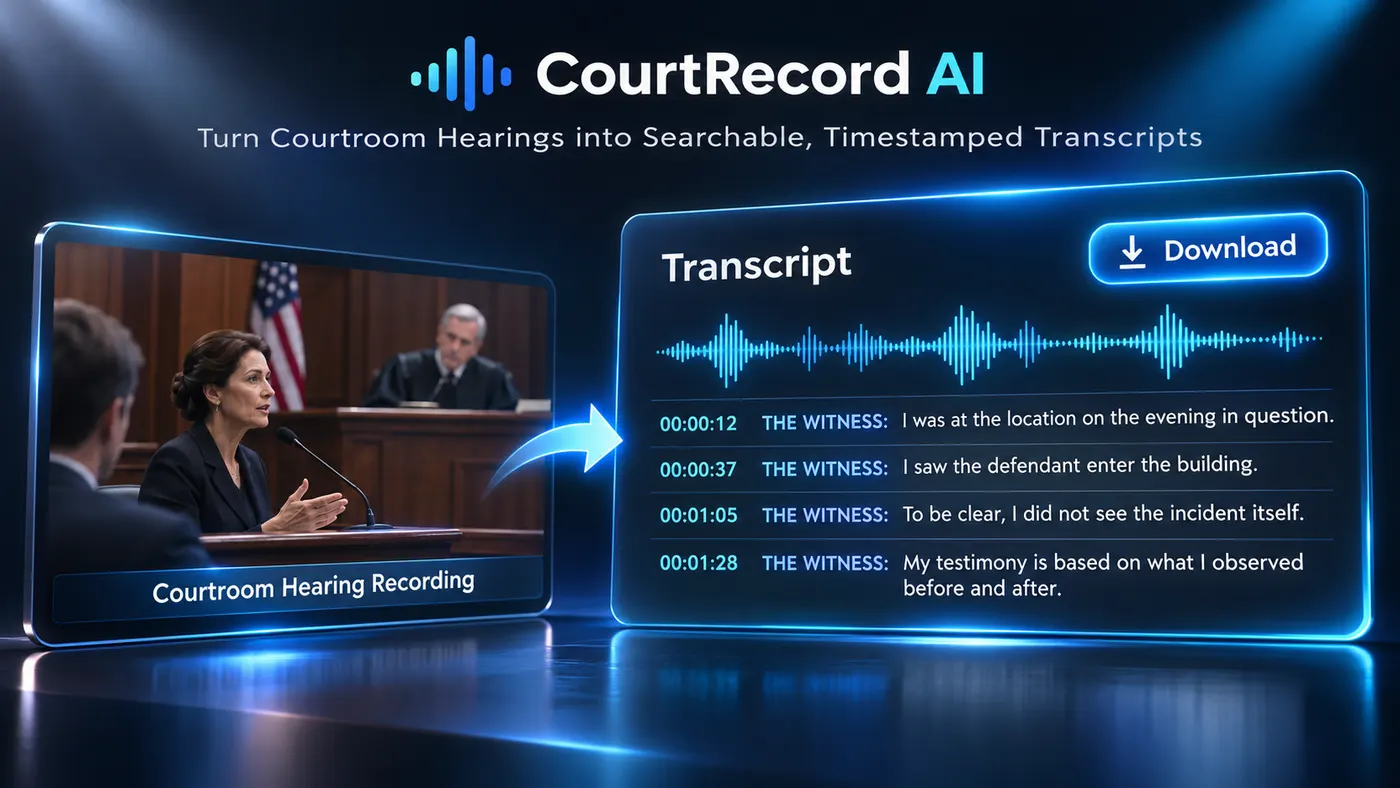
How the transcript is made
Step 1
Upload a recording
Choose one audio file and upload it. The tool accepts MP3, M4A, WAV, AAC, FLAC, OGG, OPUS, and M4B, with one file processed at a time.
Step 2
Check the setup
No extra generator settings are required: confirm the file is the recording you want transcribed, then start the run with the Transcribe audio button.
Step 3
Wait for the result
Processing listens to the audio and returns a timestamped transcript. Credit use is 4 credits per audio minute, rounded up to the whole minute.
Step 4
Search and download
Search or copy the transcript, download TXT, and use the timed result for an audio to srt file workflow. Pro users can export SRT or VTT when that format is needed.
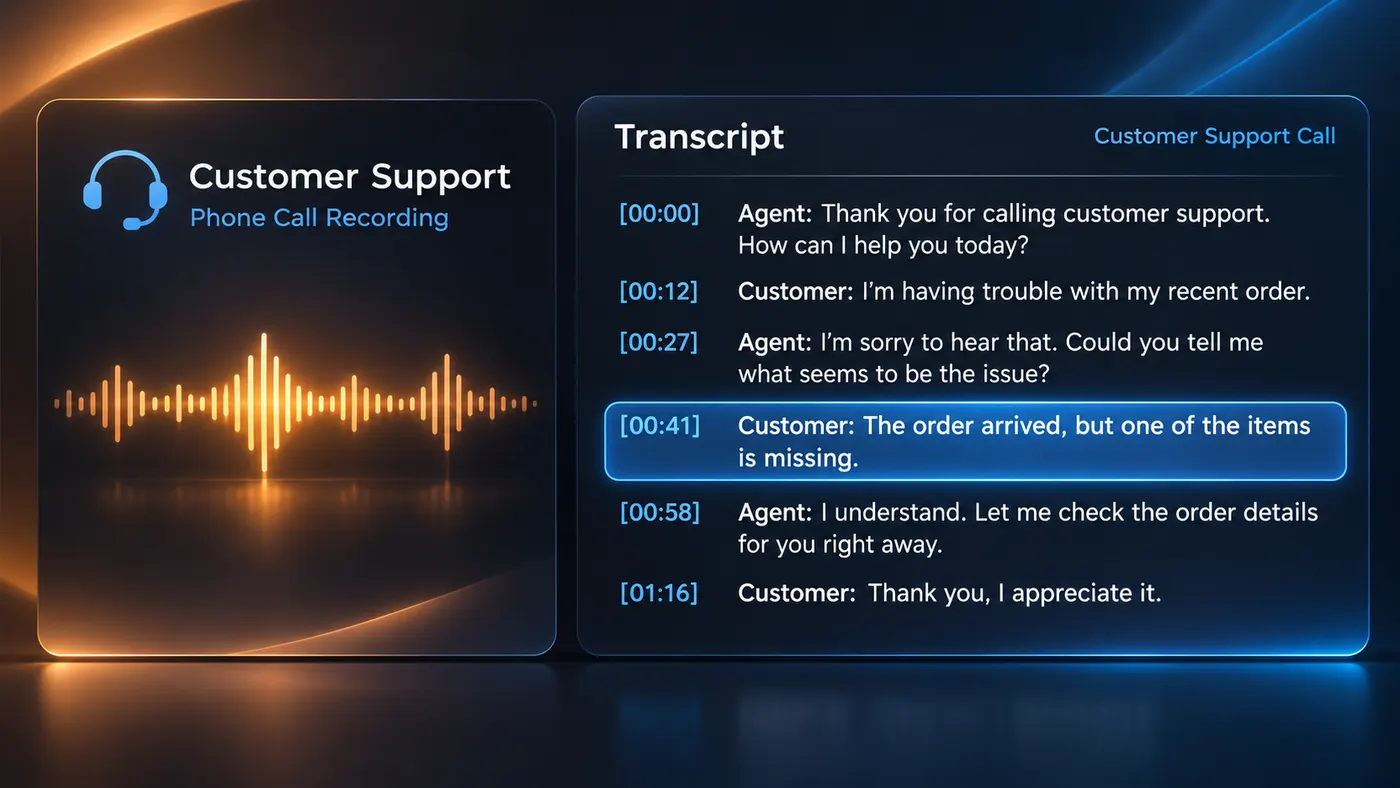
Common audio formats
Upload MP3, M4A, WAV, AAC, FLAC, OGG, OPUS, or M4B. These accepted audio formats let you begin with the recording you already have.
A focused upload
The configured input takes one audio file per run. That keeps the task focused on one recording and gives you a single transcript to inspect after processing.
Review the words
Search the returned transcript and copy the text you need. This is useful when you want to verify a passage before downloading it or preparing subtitles.
Know the credit rule
Transcription costs 4 credits per minute of audio, rounded up to the whole minute. A recording that passes a minute boundary uses the next whole-minute amount.
Download plain text
The built-in download is TXT, which works well for notes, editing, and archiving. It is a text result, not a claim that subtitles are burned into video.
Export subtitle formats
Pro export supports SRT or VTT, so you can convert audio to srt when you need timed captions. The resulting audio to srt file is meant for import into subtitle-aware workflows, not as a video burn-in.
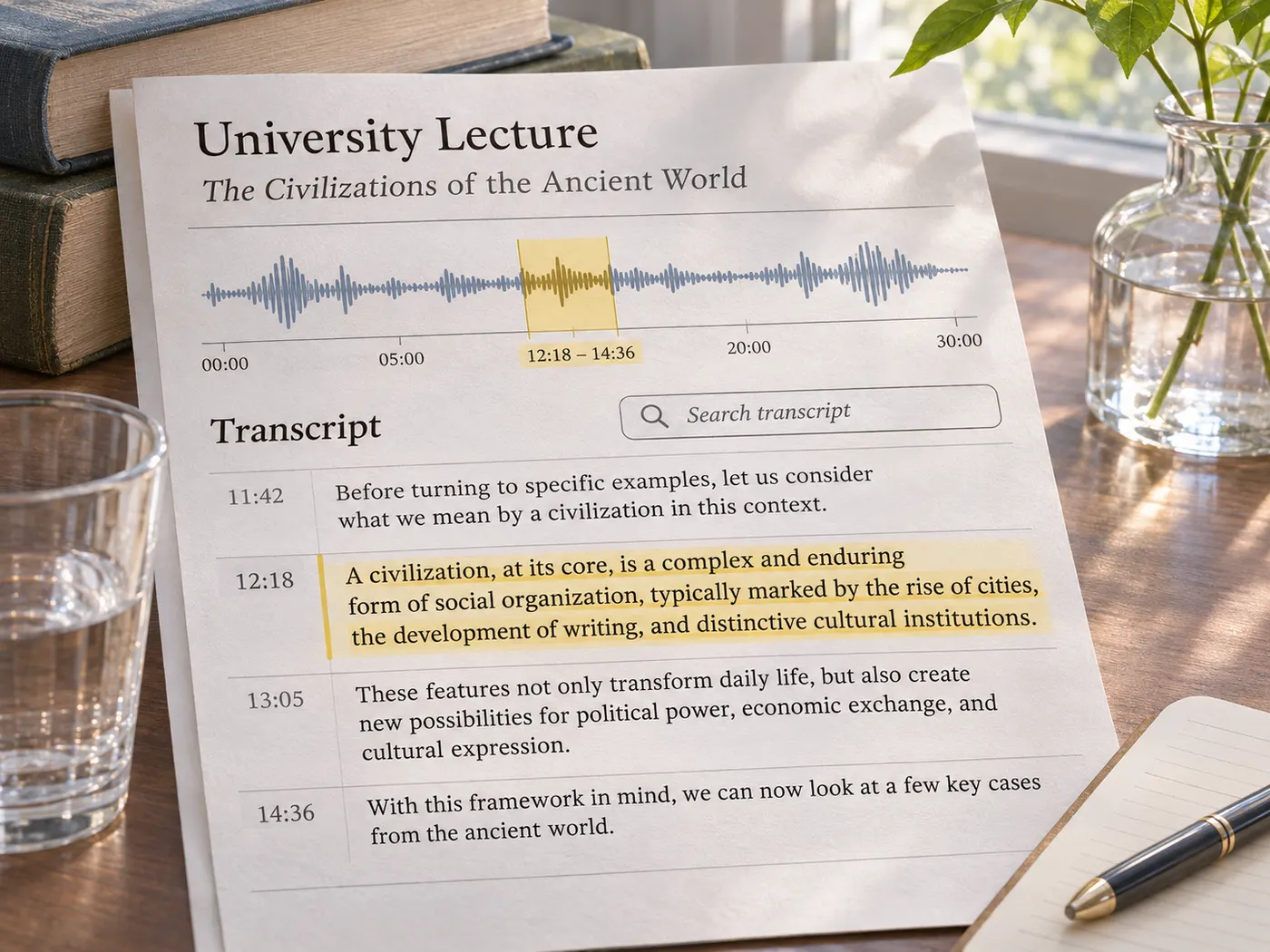
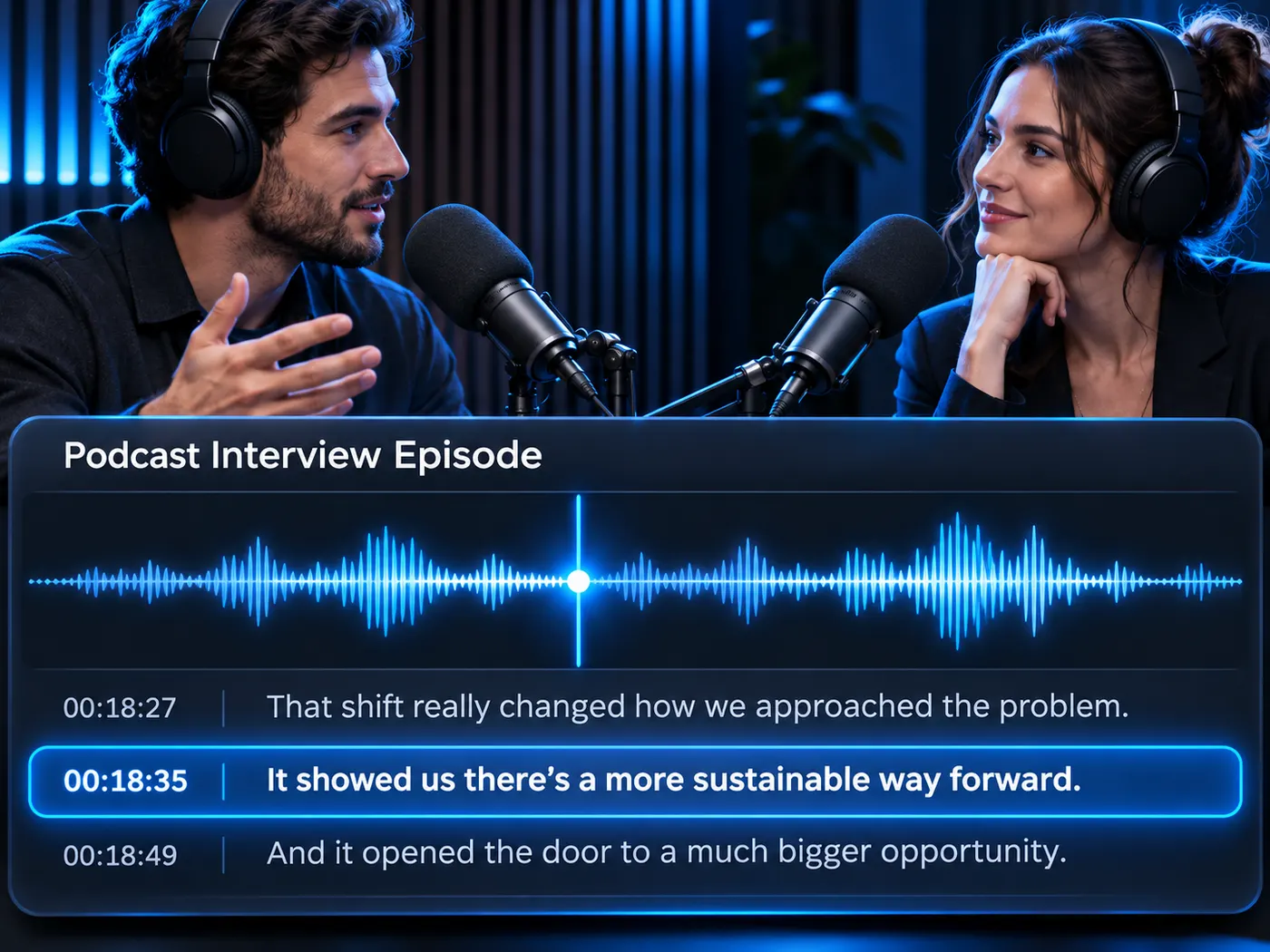
See the transcript detail
Small timing cues make a long recording easier to review.
What this tool gives you
| What you get | A real preview or structured result produced by the embedded tool, with a download or export action when available. |
|---|---|
| On this page | The tool itself, step-by-step guidance, honest examples, and related tools — all on this same page. |
| Best for | Audio to SRT File: Timed Subtitle Generator when you want a direct browser workflow without leaving the page. |
Who uses timed transcripts

Researchers
Review interviews, lectures, and recorded discussions without manually typing every sentence.
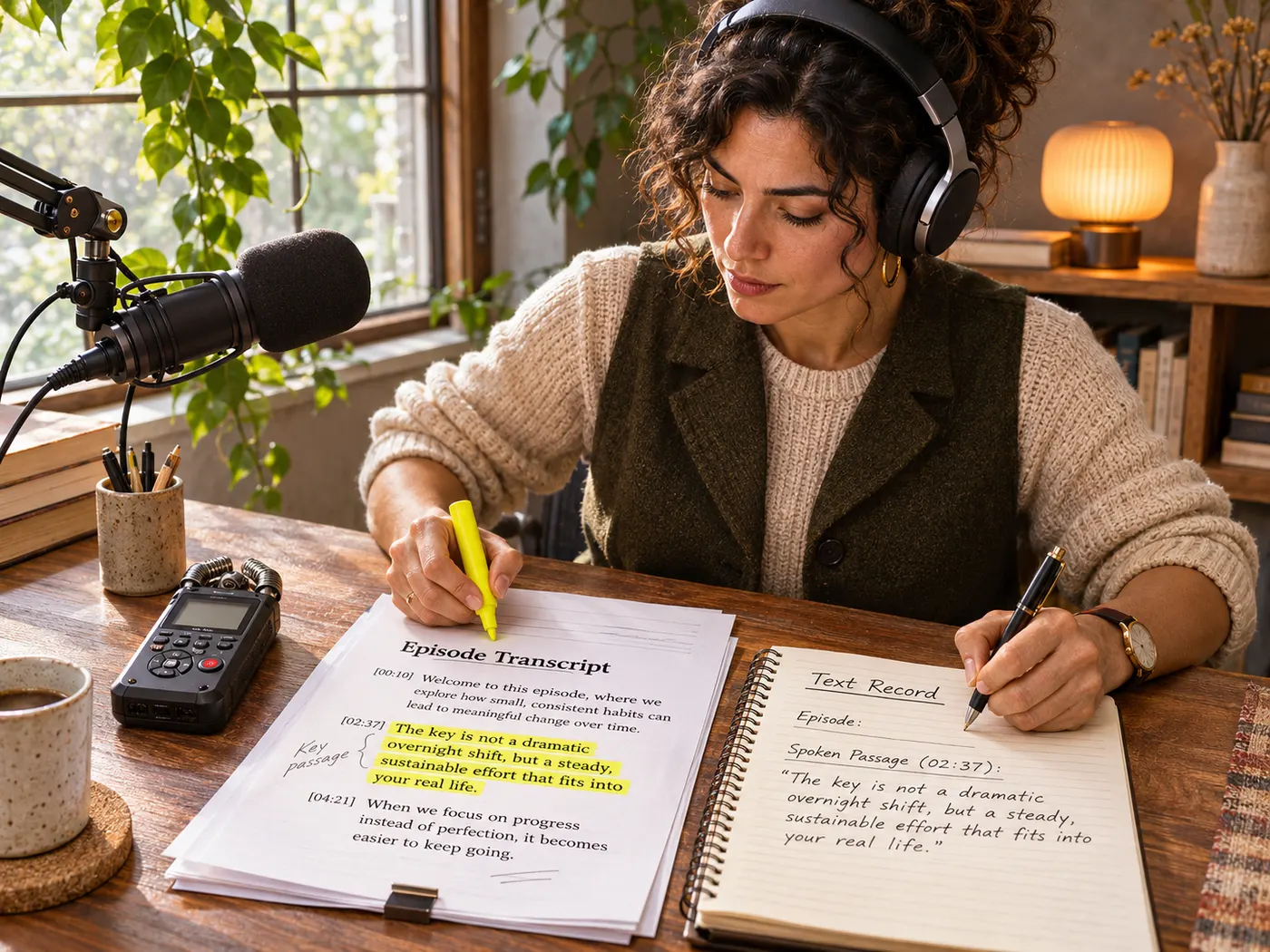
Podcasters
Find a spoken passage quickly, copy its wording, and keep a searchable text record of an episode.
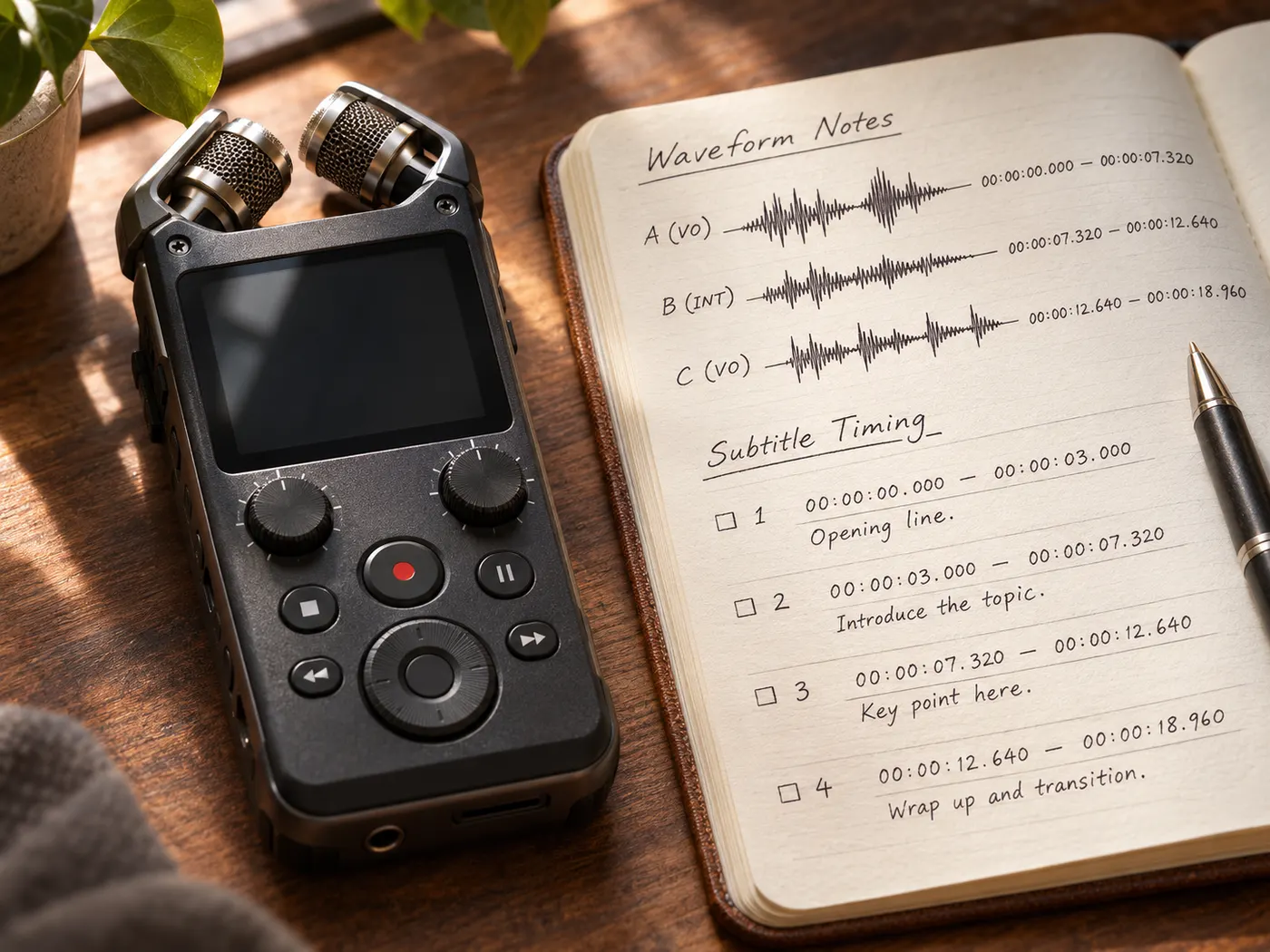
Video editors
Start an audio to srt file workflow from a recording before importing timed subtitles into a compatible editor.

Students
Turn a class recording into searchable text for review, quotation checks, and personal study notes.
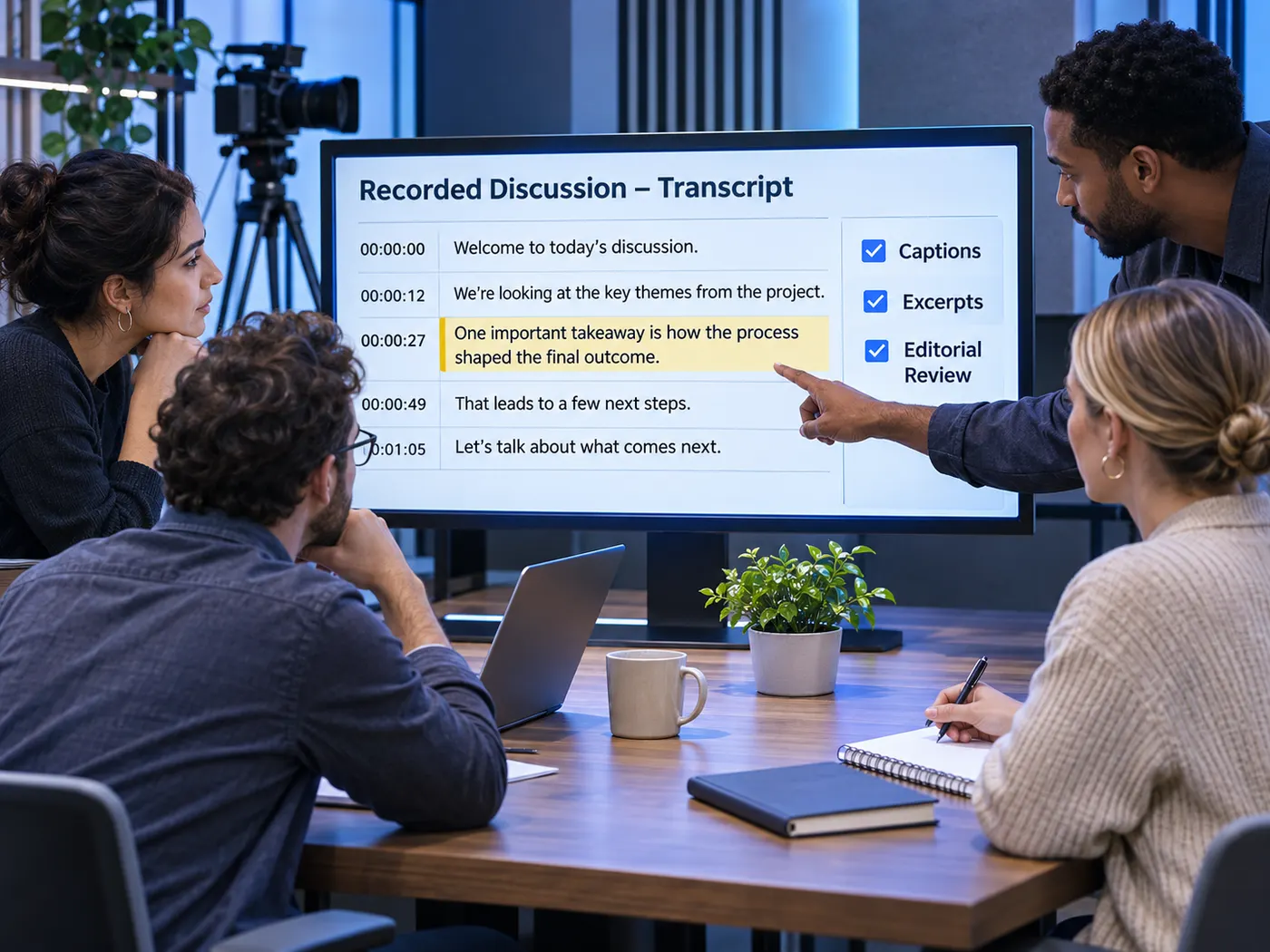
Content teams
Use a timestamped transcript as a starting point for captions, excerpts, and editorial review.
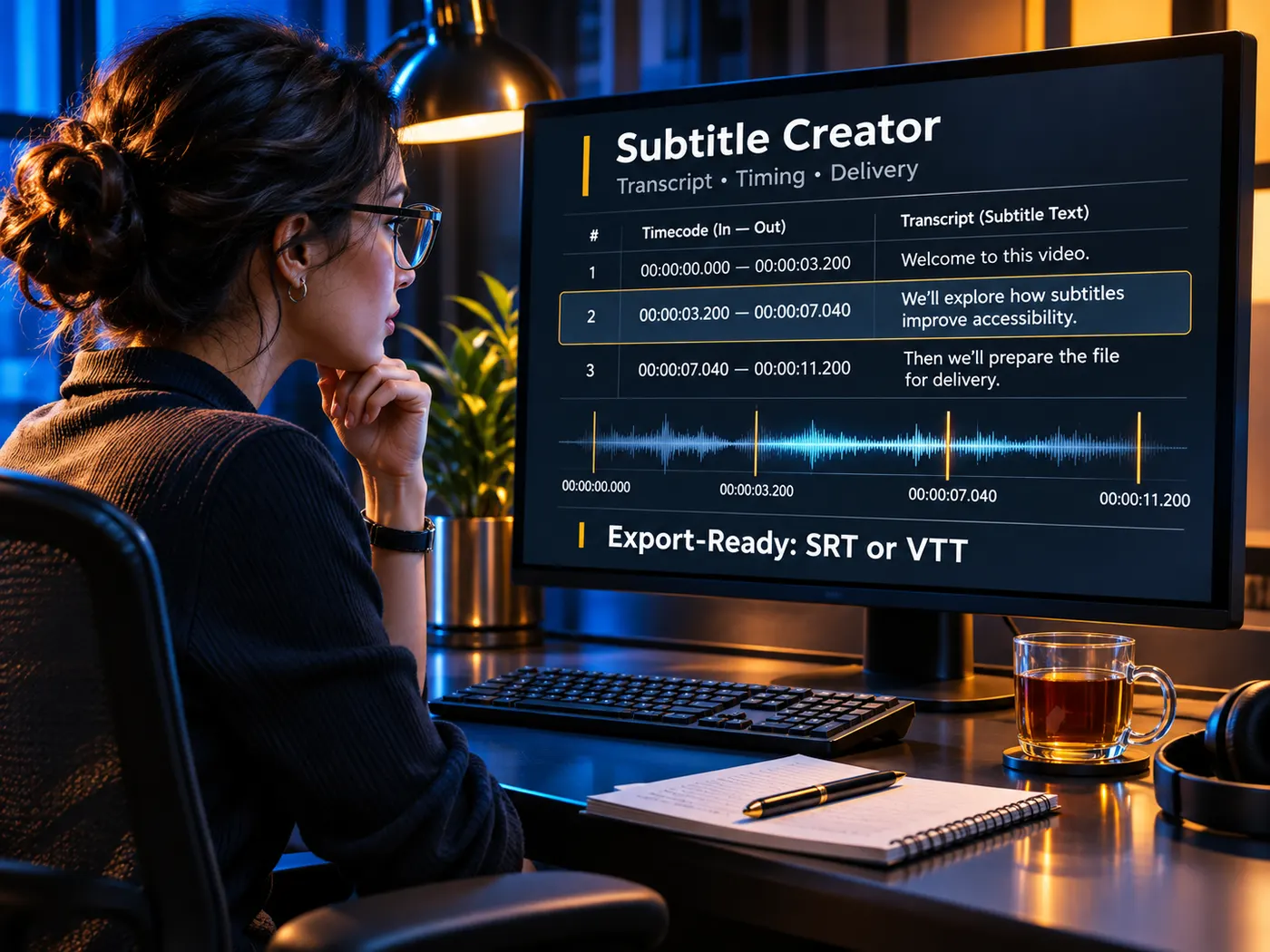
Subtitle creators
Inspect the words and timing first, then use the available SRT or VTT export for the next step.
Questions about audio subtitles
- Can I use this tool to make subtitles from an audio file?
- Yes. Upload one supported audio file and the tool returns a timestamped transcript you can search, copy, or download as TXT. Pro export adds SRT or VTT for subtitle workflows.
- Does it create an SRT file or only plain text?
- It returns a timestamped transcript first, while the built-in download is TXT. Pro users can export SRT or VTT, so an audio to srt file can be prepared for a subtitle-aware editor.
- Which audio formats can I upload for transcription?
- You can upload MP3, M4A, WAV, AAC, FLAC, OGG, OPUS, or M4B. The configured input accepts one audio file per run.
- How many credits does audio transcription use?
- Transcription uses 4 credits per minute of audio, rounded up to the whole minute. The charged duration follows the audio length rather than the amount of text returned.
- Can the transcript identify different speakers?
- No speaker-label capability is claimed for this tool. It returns timestamped transcript text, which you can review, search, copy, or download.
- How do I convert an audio recording into subtitles?
- To convert audio to srt, upload one file, wait for the timestamped result, and download TXT or use Pro SRT or VTT export. That is the practical path for an audio to srt file.
Simple, honest pricing
Copying and exporting a transcript you already have is free. New transcripts use credits — pick a plan when you need more.
- Free
- $0 — 5 credits on sign-up
- ProPopular
- $9.99/mo — 600 credits
Make your audio subtitle-ready
Upload one recording to get searchable text with timing, then download or export the format your workflow supports.